Video ads in Google Ad Manager provide a powerful monetization solution through various formats, including pre-roll, mid-roll, companion, and rewarded videos, all supported by advanced targeting options.
The global native video advertising industry, estimated to be worth USD 5.13 billion in 2024, is expected to rise steadily to USD 6.42 billion in 2025 and USD 38.8 billion by 2033, with a CAGR of 25.2% between 2025 and 2033 (Business Research Insights).
With the introduction of outstream video ads, leveraging this format for revenue growth has become easier. Not only are these formats supported in GAM, but they have become central to the platform approach, making it possible for publishers to cash in the rising global video advertising budgets and earn more.
In this post, we cover types of video ads in Google Ad Manager and how to get started with it.
How to Get Started With Video Ads in GAM?
To get started with video ads in GAM, you need to make sure that your website is set up properly for seamless communication with GAM. Following this, you enable video settings in your network, create video ad units, and define your video ad inventory.
Next, you generate video ad tags, and place them in your video player to connect with the demand source and serve ads. Finally, you configure the video line items to ensure they are assigned the right placement.
We have described the process in short, but will be covering it in detail in the subsequent sections. Before that, let’s explore the types of video ads in GAM.
However, if you want to explore the process further, you can straightaway start with it: How to Run Video Ads in GAM?
Types of Video Ads in Google Ad Manager
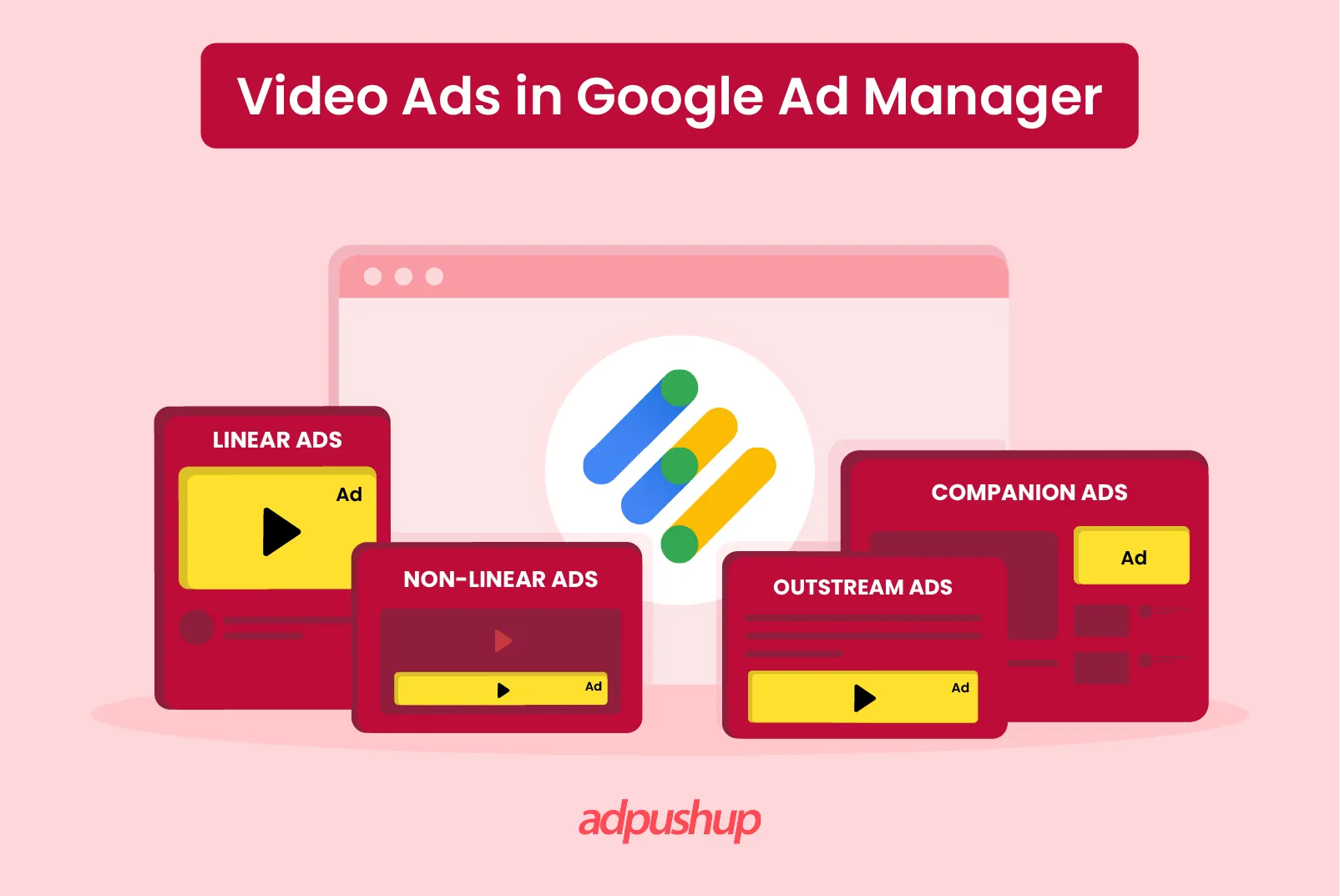
Before beginning with the process of running video ads in GAM, publishers must first have an understanding of the ad types that Ad Manager supports. GAM allows three types of video ad types: Linear, Non-linear, and Companion. Apart from these, it also supports rewarded video ads and native video ads, which are also available on connected TV.
1. Linear Video Ads
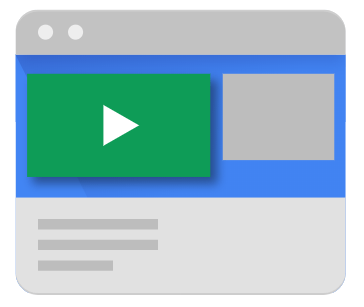
Linear ads are only played with the help of a video player. They are a form of in-stream ads and are of three types:
- Pre-roll: These ads are played in the beginning of the video.
- Mid-roll: These ads are played in-between the video content
- Post-roll: These are played after a video ends.
2. Non-linear Video Ads
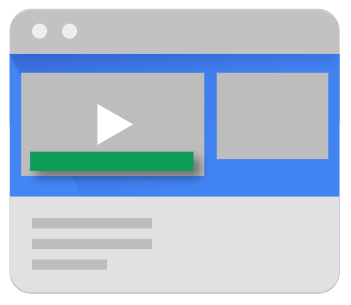
These are also in-stream video ads but they do not disrupt the playback. For example: banner ads that appear at the bottom of YouTube videos. A good practice is to include these ads in the top or the lower 1/3rd of the video. They can be either display or video-based ads and are of two types: overlay and non-overlay ads.
- Overlay ads: A type of ad format that appears on top of existing website content. When placed near the bottom, they typically take up 20% of the screen space without blocking the user’s view.
- Non-overlay ads: Non-Overlay ads run alongside video content without covering it, allowing seamless interaction with the video. The key advantage is that the video remains completely unobstructed throughout playback.
3. Companion Ads
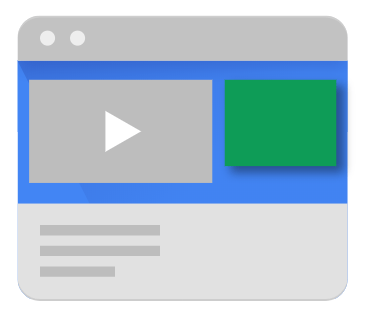
Companion ads are placed around the video player on the webpage where the video is being played. These ads allow you to link non-video ad units to video player on the same webpage. They also depend on master video to serve. They are either text or image based and help publishers get additional revenue without letting users get distracted.
4. Out-stream Ads
Google introduced four new formats under out-stream video ads, enabling publishers to capitalize on the increasing video ad budgets for their non-video content on apps and websites. A Google report states that publishers deploying out-stream ads earn 8.9 times more CPMs than standard banner ads on Ad Exchange, on average.
Here are the 4 outstream ad formats provided by Google:
4.1 In-feed and In-article Video Ads
These are non-in-stream ads that appear in ad units located in the center of non-video content, such as news articles and feeds. These formats are compatible with mobile web, mobile apps, and desktop inventories. Moreover, they cater to a wide range of inventory sizes and support horizontal, vertical, and square videos.
Both in-article and in-feed ads by Google easily integrate with a user’s scrolling behavior on the web and in apps. They are also muted by default to avoid coming off as intrusive.
These ads play for up to 30 seconds while at least 50% of the ad remains in the user’s viewport, and may play even longer if the user engages by tapping or unmuting.
4.2 Native Video Ads
Native video ads are tailored to the form and function of the surrounding page or app. By utilizing standardized elements like descriptions, logos, headlines, and videos, publishers can create personalized ad experiences that can be integrated seamlessly into their websites or apps.
Native video ads, the most popular ad format viewed by social media users, are frequently deployed by advertisers who incorporate social media platforms into their marketing plans. They come in a variety of ad formats, including pre-roll video ads, Facebook native video ads, and in-game commercials.
4.3 Rewarded Video Ads
With 96% of gamers across age and gender indulging in gaming every week, game developers are actively capitalizing on this growing usage (Google). Using Ad Manager’s Rewarded Video Ads, the developers are creating user-first and non-intrusive ad experiences that offer in-game rewards (coins or unlocking a premium level/item) in exchange for viewing an ad.
These ads foster higher engagement and completion rates, resulting in a more appealing advertising inventory for publishers.
Google Ad Manager has two inventory forms that give rewards:
- Rewarded ads: Users can opt-in to watch a video or view a display ad for rewards, such as unlocking a news article, earning coins to access short videos in microdramas, gaining an additional life in a game, or getting free Wi-Fi access, among others.
- Rewarded interstitial ads: An ad is shown to the user in exchange for a reward. However, the publishers provide a clear way for users to opt out of the ad experience, keeping the ad experience user-centric.
Rewarded ads are supported across programmatic channels, including Preferred Deals, Private Auctions, and Programmatic Guaranteed. However, rewarded video ad formats do not support VPAID creatives.
Pre-requisites of Running Video Ads in Google Ad Manager
Before we proceed with understanding how video ads are run in Google Ad Manager, we must first look into some of the necessary conditions for setting up these ads.
- Video Players: In order to run video content (including ads) on a website, publishers need a video player. While there are multiple options available, Google offers their own list of partners to get started with.
- Although optional, but highly recommended is the integration of the video player with Google Interactive Media Ads (IMA) SDK. This is beneficial for all publishers as the IMA SDK supports all video templates by IAB: VAST, VPAID, and VMAP.
How to Run Video Ads in Google Ad Manager?
The process of implementing video ads in Google Ad Manager is a 5-step process:
- Step 1: Create Ad Units
Ad units are the spaces on a publisher’s inventory where they want to display ads. The first step to running these ads is creating ad units to run ads on. Here’s how you can do it:
Sign in to your Google Ad Manager account.
Click on Inventory >> Ad Units.
You need to select a hierarchy level for the ad unit. This can be achieved by selecting a parent ad unit or by setting the ad unit to run at the top.
Click on New ad unit.
Now enter a Code. This will help in identifying the ad unit in the associated ad tag. For example, mysite_economy_home.
Provide a Name and Description for the ad unit.
Select a size for the ad unit. You can select two sizes: Fixed and Smart.
In case you are using Video Solutions offered by GAM, the next step is to enter the default master video and companion slot sizes. Master video size is the size of the video player in its most favoured aspect ratio.
Select Target window which has two options: Top and Blank. The target window is important as it defines the window in which the landing page will open.
Set Frequency Caps, which define the number of times a user will see the ad on their screen.
Click on Save. - Step 2: Video Ad Tag Generation
Once you have created the ad unit, the next step is to generate ad tags. Ad tags are important because they contain all kinds of information required in a video ad request. This can include anything related to the companion ads or the master video ad.
Here’s how you can generate ad tags for the video ad units:
Click on Inventory >> Ad Units
Select an existing ad unit and click on Tags.
Select the Tag Type. Most common is the Google Publisher Tag.
Select the SDK type. If you do not have an SDK, opt for no SDK. In most cases, a publisher is using the Google IMA SDK, so select that.
You can then add optional parameters in the tag.
Copy the generated ad tag. - Step 3: Creating Video Line Items
Once you’re done with generating a video ad tag, the next step is to create a line item. But before that, defining orders is mandatory. Once that’s done, here’s how you can proceed with line item creation;
In your insertion order, click on the New Line Item button.
Click on Video.
Assign a name to your line item.
The next step is line item targeting. For these ads, there are four kinds of targeting available: Content targeting, Position targeting, Request format targeting, and Request platform targeting.
Here, we’ll be covering three of the major targeting: Content, Position, and Request Platform Targeting.
Content Targeting: Through this, publishers can monetize video content more efficiently by targeting ads to that specific content. This is done by collecting metadata by connecting your Content Management System to Google Ad Manager. Here’s how you can do this;
Click on Video >> Content Sources >> New Source.
Enter a source name, after which you will need to select a Content Type.
Choose one of the three available type options: MRSS Feed, Ooyala, Brightcove. Each type requires individual credentials. For example, for Ooyala, you will need to enter API key and API secret.
Next step is to select a sync rule which is of two types: Automatic and Manual.
Click on Save.
Position Targeting: Through this, publishers can target video line items to specific video positions such as pre-roll, mid-roll, etc. But for this, the first step is to set ad rules. This helps in setting parameters such as how long the ad will be played and others. Here’s how you can do it:
Sign in to your Google Ad Manager account.
Click on Video >> Ad Rules >> New Ad Rule.
Pick and enter a name for the rule, followed by selecting the status, and either of the two ad rule types: Standard and Session. Configuration of either of the rules is a lengthy process and requires a thorough understanding of settings.
Next step is to choose schedule time for the rules. Select Unlimited if you want the ad rule to run indefinitely.
Click on Targeting to match the ad rule with specific ad requests.
Click on Save.
Request Platform Targeting: Publishers can use this to target video line items to specific ad request platforms. Here’s how you can do this:
Sign in to your Google Ad Manager account.
Select a video line item or create a new one. And then click on Settings.
Under the Add Targeting section, click on Inventory Type. Select any of the available inventory types including In-stream video, App display and out-stream, Web display and out-stream.
Click on Save. - Step 4: Adding Creatives to Line Items
Video line items require addition of creative sets into them. Here’s how you can do it:
Click on Delivery >> Line items.
Select and open your video line item.
Click on Creative >> Add Creative >> New Creative.
You will then need to select a VAST creative. Ad Manager supports four kinds of VAST creatives: video, overlay, redirect, and set-top box.
Configure settings according to your preferences and click on Save. - Step 5: Creating Reports
Reporting for video ads in Google Ad Manager works exactly the same for any other ad format. Here’s an extensive guide on how to generate reports in GAM.
Key Takeways: Video Ads in Google Ad Manager
- There are various types of video ads in Google Ads Manager, such as Linear (pre-, mid-, post-roll), Non-linear (overlay, non-overlay), Companion, Out-stream, Native, and Rewarded video ads for diverse monetization options.
- Successful video ad implementation requires a video player (preferably integrated with Google IMA SDK) to support all standard video ad formats (VAST, VPAID, VMAP).
- The process involves five key steps: creating ad units, generating video ad tags, creating video line items with targeting options (content, position, platform), adding creatives (VAST tags), and generating reports to monitor performance.
Are you planning to run video ad on your website or app? Contact AdPushup and get a free demo! Our AdOps expert will not only help you set up your GAM account, but will also optimize the processes to fetch you the highest possible eCPMs.
FAQs: Video Ads in Google Ad Manager
A1: Yes, it is possible to run video ads on Google. Publishers can integrate video ads in their website via GAM using the IMA SDK. It is also possible to run video ads through AdSense for Video, an AdSense product. However, it is not accepting any new users as of now.
A2: The cost per click for Google Ads Search is $2.32. The cost per click for Google Ads Display is $0.67. The cost per click for Google Ads Shopping is $0.54 per click. The cost of Google Ads Video is $0.1 per view.
A3: The ideal length of Google video ads is 15 seconds. However, you can run ads even till 90-120 seconds. However, it’s wise to provide an option to skip the ad to users in order to maintain the user experience.
A4: Google AdSense is a beginner-friendly website monetization setup that is generally used by small to mid-scale publishers. It offers demand predefined by Google Ads. On the other hand, GAM is an advanced monetization setup that brings diverse demand for the publisher’s inventory via Google AdX.